

Table of Contents
If you’re looking to enjoy your favorite Steam games on macOS, PlayOnMac is one of the most reliable solutions available in 2025. It’s a fantastic tool that uses the power of Wine to let you run Windows applications and games directly on your Mac. In this comprehensive guide, I’ll walk you through everything you need to know, from the initial setup to the final, game-launching glory. So, let’s get your gaming setup ready and learn how to download and install Steam games on PlayOnMac!
Why Use PlayOnMac for Gaming?
Before we dive into the technicalities, let’s talk about why PlayOnMac is a game-changer for Mac users.
- No Windows License Required: Unlike a virtual machine or Bootcamp, PlayOnMac doesn’t require you to purchase a separate Windows license. It’s a completely free solution.
- Run Games Natively: PlayOnMac creates a “virtual drive” that tricks Windows applications into thinking they’re running on a Windows PC, all without a full operating system emulation. This means better performance and less resource hogging.
- Vast Game Library Access: This is the big one. With PlayOnMac, you can tap into the massive catalog of games on Steam that are only available for Windows. Think of all the indie gems, older classics, and AAA titles you’ve been eyeing.
Now, let’s get to the fun part. The process of downloading and installing Steam games on PlayOnMac is surprisingly straightforward.
Prerequisites: What You’ll Need
- A Mac running the latest macOS (Ventura or newer for best results)
- Sufficient free disk space (at least 20GB recommended for game installations)
- Active internet connection
- The latest version of PlayOnMac
- A Steam account
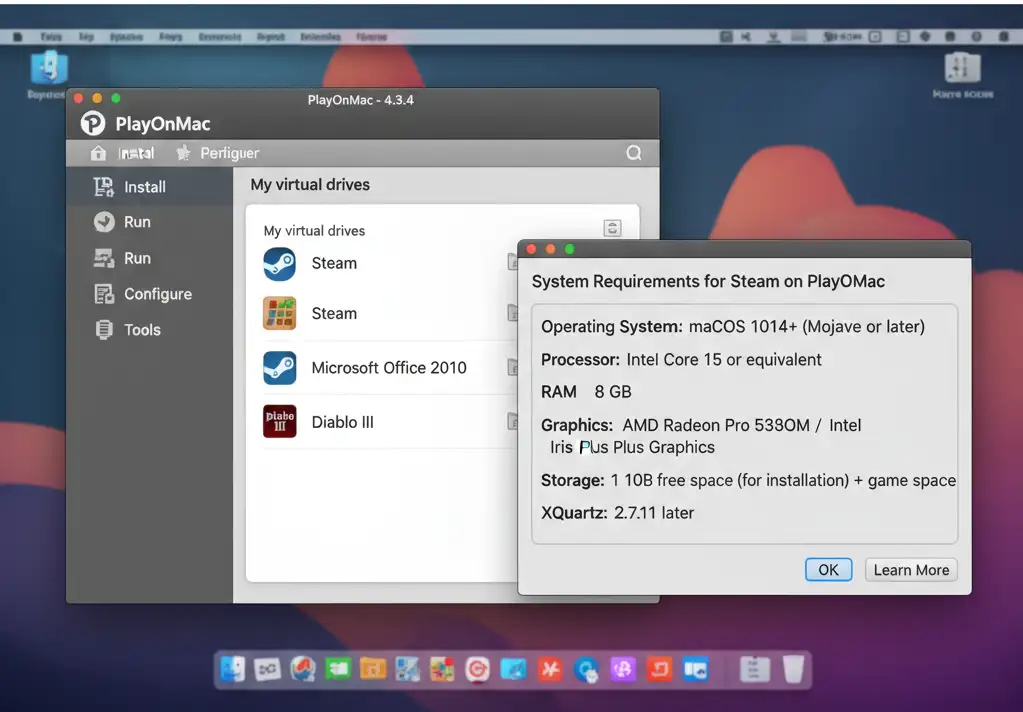
Step 1: Installing PlayOnMac
If you haven’t installed PlayOnMac yet, follow these simple steps. If you already have it, you can skip to Step 2.
A. Download PlayOnMac: Go to the official PlayOnMac website and click on the “Download” button. This will download a .dmg file to your computer.
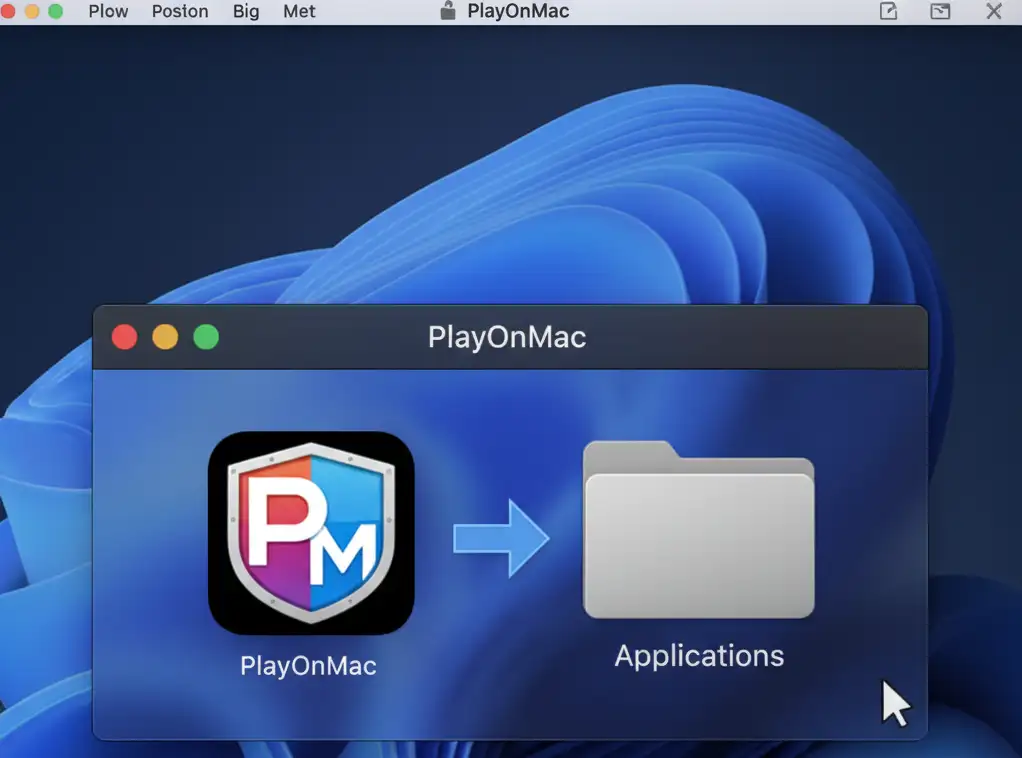
B. Install the Application: Double-click the downloaded .dmg file. A window will pop up with the PlayOnMac application icon. Simply drag this icon into your Applications folder.
C. First Launch and Initial Setup: The first time you launch PlayOnMac, it will prompt you to install a few necessary components, such as XQuartz. Follow the on-screen instructions. This is crucial as XQuartz provides the X Window System, which is essential for PlayOnMac to function correctly.
Step 2: Installing Steam via PlayOnMac’s Dedicated Script
PlayOnMac features a pre-configured script specifically designed for installing Steam, making the process incredibly easy. This is the most reliable method to download and install Steam games on PlayOnMac.
A. Open PlayOnMac: Launch the PlayOnMac application from your Applications folder.
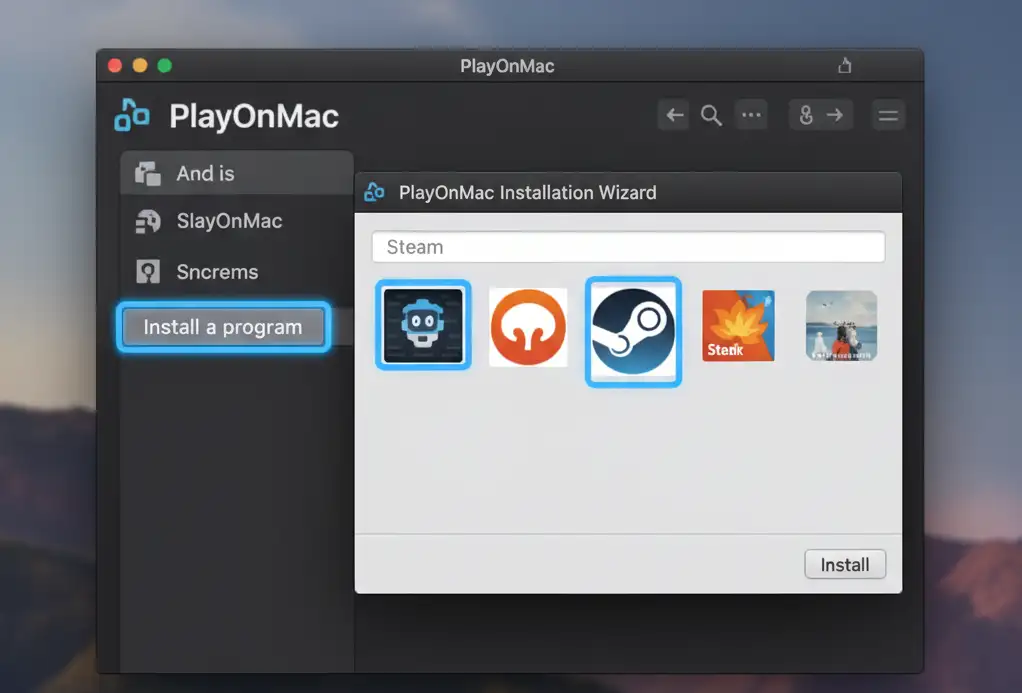
B. Start the Installation Wizard: In the main PlayOnMac window, click the “Install a program” button in the left-hand menu.
C. Find the Steam Installer: A new window, the PlayOnMac Installation Wizard, will appear. In the search bar at the top, type “Steam.” You will see an icon for Steam in the list. Select it and click “Install” on the bottom right.
D. Follow the Prompts: The wizard will now guide you through the process. It will automatically download the necessary Wine version and the Steam installer. You’ll be prompted to accept a few agreements and choose an installation directory. It’s highly recommended to leave the default directory as it is.
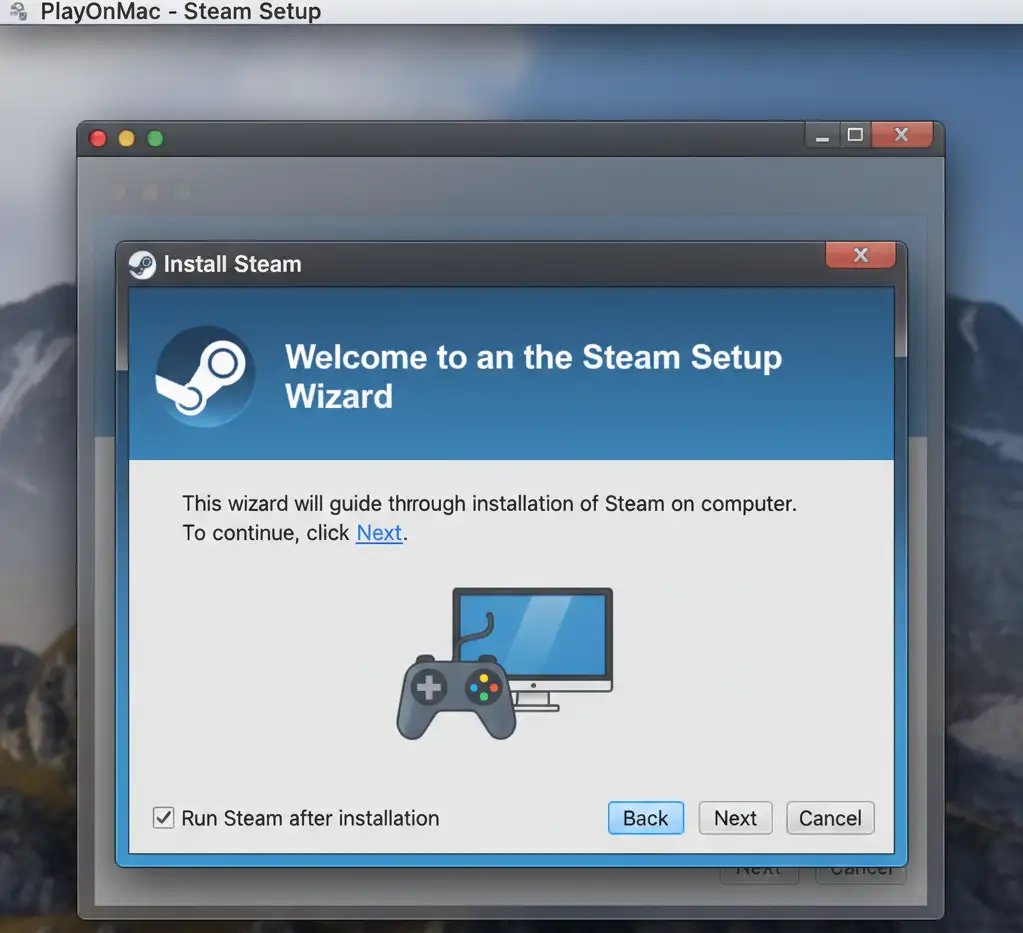
E. Run the Steam Setup: Once PlayOnMac has finished its internal setup, the familiar Steam installer window will pop up. Follow the on-screen instructions just as you would on a Windows machine.
Step 3: Troubleshooting and Common Issues
While the process is generally smooth, you might run into a few common issues. Here’s what to do if you encounter a snag when you download and install Steam games on PlayOnMac.
- Steamwebhelper.exe Error: This is a very common issue, often related to the Steam overlay. If this error message pops up, you might need to disable the Steam overlay in the settings once you log in. You can also try installing “HackSteam” from the “Install components” menu in PlayOnMac’s configuration.
- Blank Window or Login Screen: Sometimes, the Steam login window will appear blank. Give it a few moments. PlayOnMac needs a little time to set up the virtual environment. If it persists, try restarting PlayOnMac.
- Game Crashes on Launch: If a specific game crashes, it’s often due to a missing dependency. You can try installing various components from the “Install components” menu in PlayOnMac, such as DirectX, VC Redistributables, or specific fonts.
Step 4: How to Download and Install Your Games
Congratulations! You’ve successfully installed Steam. Now for the moment you’ve been waiting for: downloading and installing your games.
A. Launch Steam through PlayOnMac: Do not launch Steam from the shortcut on your desktop (if one was created). Instead, open PlayOnMac and double-click the Steam icon in the main window. This is the most reliable way to launch the application.
B. Log in to Your Steam Account: Log in with your usual Steam username and password.
C. Download and Install Your Game: Navigate to your Steam Library. Find the game you want to play and click the “Install” button, just like you would on a Windows PC. The download will begin, and Steam will handle the installation process.
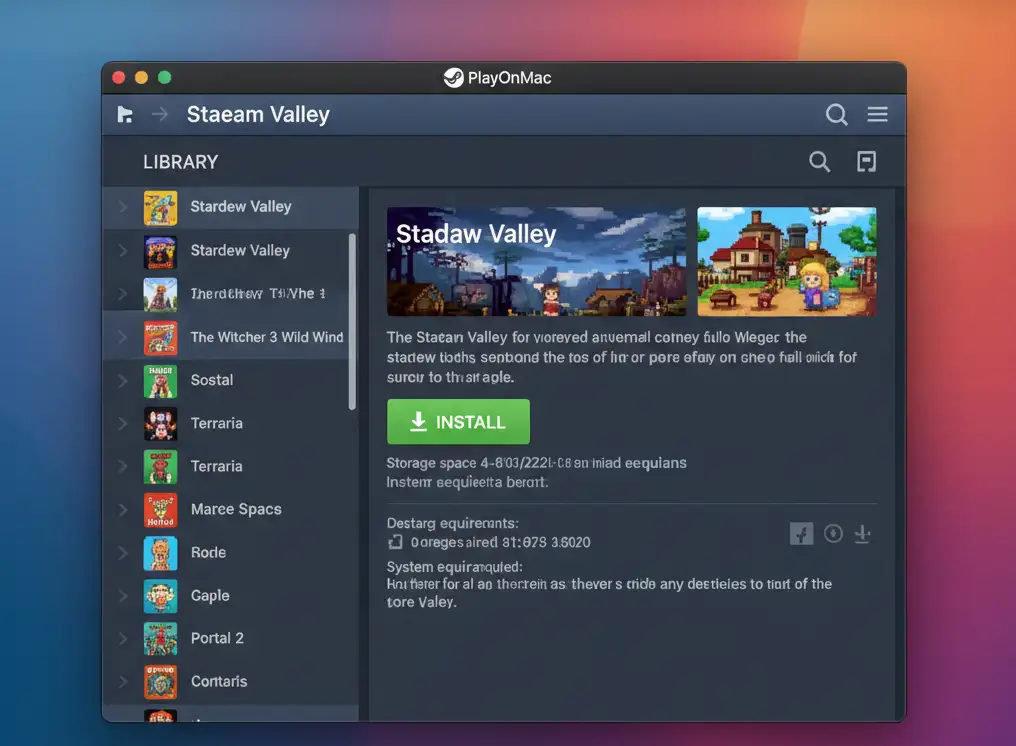
D. Launch and Play: Once the installation is complete, you can launch the game directly from your Steam Library. It’s that simple!
Maximizing Performance and Game Compatibility
To get the most out of your gaming experience, here are a few pro tips:
- Disable Steam Overlay: The Steam overlay can sometimes cause performance issues or crashes. Go to Steam > Settings > In-Game and uncheck the “Enable the Steam Overlay while in-game” option.
- Experiment with Wine Versions: PlayOnMac allows you to manage different versions of Wine. If a game isn’t running well, try switching the Wine version for that specific virtual drive. You can find this option in the “Configure” menu for your Steam installation.
- Check Compatibility Databases: Before you download and install Steam games on PlayOnMac, it’s a good idea to check compatibility databases like ProtonDB. While this is primarily for Linux users, the information on how games perform with Wine is often very relevant for PlayOnMac as well.
Conclusion: Enjoying Steam Games on Mac Has Never Been Easier
With PlayOnMac, the challenge of running Windows-only games on macOS is solved for gamers in the USA, Europe, and India. By following these precise steps to download and install Steam games on PlayOnMac, anyone can unlock a world of PC gaming on their Apple device.
Frequently Asked Questions (FAQ)
A: Yes, PlayOnMac is a free and open-source application. It relies on the free Wine compatibility layer to run Windows applications on macOS.
A: Not all, but a significant number of them are compatible. PlayOnMac’s official website has a compatibility database, and you can also check other community-driven sites like ProtonDB for more information on how specific games run with Wine.
A: Bootcamp requires you to partition your hard drive and install a full copy of Windows, which requires a license. Parallels is a virtual machine software that also requires a Windows license and emulates a full operating system. PlayOnMac is a much lighter solution that runs Windows applications without the overhead of a full OS installation.
A: Performance can vary. For older or less graphically demanding games, you may see similar or even better performance. However, for high-end, modern AAA games, a native Windows installation will almost always offer superior performance. PlayOnMac is best suited for older titles or indie games that don’t require immense graphical power.
A: Many multiplayer games work, but some anti-cheat systems may block network play.
A: For free solutions, PlayOnMac is best; however, paid options like Crossover may support more titles and run faster.
A: Some games run, but check compatibility lists for best results.
Also Read: