
Table of Contents
Running Windows applications on a Chromebook used to be a dream for many users needing legacy apps, business software, or even simple games available only on Windows. Thanks to advancements in virtualization and compatibility layers, it is now very possible to use “Windows emulator for Chromebook” solutions and enjoy the best of both Chrome OS and Windows ecosystems. This article lists the 10 best, most reliable, and free ways to emulate Windows on a Chromebook.
Why Use a Windows Emulator for Chromebook?
Chromebooks are lightweight, secure, and easy to use, but they lack native support for Windows apps. Whether it’s running Microsoft Office, Adobe products, or specialized education and business tools, a “Windows emulator for Chromebook” bridges this gap, extending the utility of your device. Such tools offer:
- Access to legacy/business/academic Windows software
- Enhanced productivity with Windows-based utilities
- Flexibility to run both Chrome and Windows side-by-side
1. Parallels Desktop for Chrome OS: The Enterprise Standard
Parallels Desktop isn’t free, but it’s arguably the most professional and integrated solution for running a full version of Windows on a Chromebook. It’s designed for enterprise and educational users who need seamless access to Windows applications.
Key Features:
- Full Integration: Drag and drop files between Chrome OS and Windows.
- Seamless Performance: It’s optimized for high-performance Chromebooks with Intel Core i3, i5, i7, or AMD Ryzen processors.
- Native Feel: Windows apps can be launched from the Chrome OS shelf, making it feel like they are native apps.
- No Dual Booting: Windows runs in a separate window, so you don’t have to restart your Chromebook.
How to Install Parallels Desktop:
- Check Compatibility: First, ensure your Chromebook is on the list of supported devices for Parallels Desktop. You’ll need a powerful machine.
- Purchase and Download: Go to the Parallels website, purchase a subscription, and download the application to your Chromebook.
- Launch and Install Windows: Open the Parallels app and follow the on-screen instructions. The application will guide you through the process of installing a Windows ISO file.
- Allocate Resources: During setup, you can allocate CPU cores and RAM to your virtual machine for optimal performance.
- Start Using: Once the installation is complete, you can launch a full Windows desktop within a window on your Chromebook.
2. QEMU: The Free and Powerful Open-Source Emulator
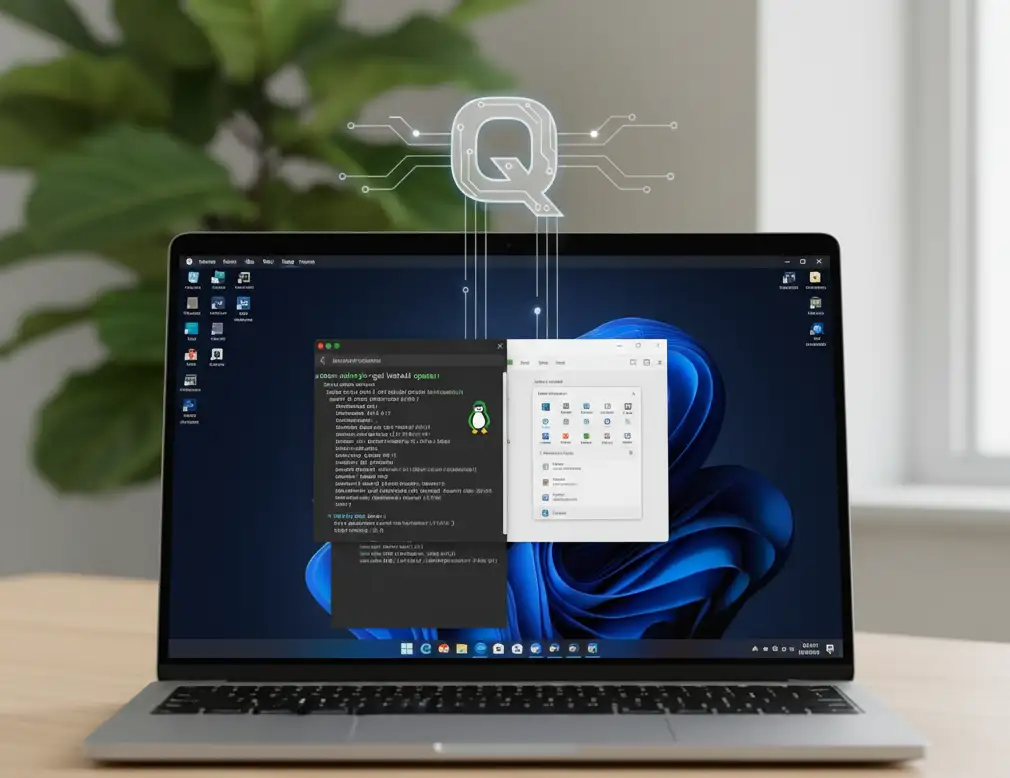
If you’re on a budget and have some technical skills, QEMU (Quick Emulator) is one of the best free Windows emulator for Chromebook options available. It’s a versatile and powerful open-source emulator that can run a wide range of operating systems, including Windows.
Key Features:
- Free and Open Source: No cost, ever.
- Highly Customizable: You can fine-tune every aspect of the virtual machine.
- Full System Emulation: QEMU can emulate an entire computer, allowing you to install a full Windows OS.
- Runs on Linux: You’ll need to enable Linux (Beta) on your Chromebook to use QEMU.
How to Install QEMU:
- Enable Linux on Chromebook: Go to your Chromebook’s settings, find “Linux (Beta),” and turn it on. This will install a Debian-based Linux environment.
- Open Terminal: Once Linux is set up, open the terminal application.
- Install QEMU: Type the following command and press Enter:
sudo apt-get update && sudo apt-get install qemu-system-x86 - Download a Windows ISO: Find and download an official Windows ISO file from Microsoft’s website.
- Create a Virtual Disk: Create a virtual hard disk for your Windows installation with the command:
qemu-img create -f qcow2 windows.qcow2 30G - Run the Installation Command: Now, execute the QEMU command to start the Windows installation process. This is the most complex step and requires a specific command string that varies depending on your hardware. A basic command looks like this:
qemu-system-x86_64 -hda windows.qcow2 -cdrom path/to/your/windows.iso -boot d -m 4G -enable-kvm -cpu host - Follow Windows Setup: The QEMU window will open, and you can proceed with the standard Windows installation.
3. Wine: The Windows Compatibility Layer
Wine (which stands for “Wine Is Not an Emulator”) is a different beast entirely. It’s not a full-system emulator but a compatibility layer that translates Windows API calls into POSIX calls on the fly. This means it can run many Windows applications directly without needing a full Windows installation.
Key Features:
- Lightweight: Since it doesn’t run a full OS, it’s less resource-intensive.
- Direct App Execution: You can run specific Windows programs without a full virtual machine.
- Free and Open Source: Like QEMU, it’s completely free to use.
How to Install Wine:
- Enable Linux on Chromebook: As with QEMU, you must have the Linux (Beta) environment enabled.
- Install Wine: Open the terminal and run the command:
sudo apt-get install wine - Download a Windows Application: Find a Windows
.exefile you want to run. - Run the Application: Use the command
wine path/to/your/app.exeto launch it. Not all apps are compatible, so check the Wine AppDB for compatibility ratings.
4. CrossOver: The User-Friendly Wine Alternative
CrossOver is a commercial product built on the same core technology as Wine but with a much more user-friendly interface. It takes the hassle out of configuring Wine and has a large database of pre-configured applications that are known to work well.
Key Features:
- Easy to Use: A simple, graphical interface for installing and managing Windows apps.
- Pre-Configured Bottles: It creates isolated “bottles” for each application, preventing conflicts.
- Customer Support: Being a paid product, it comes with dedicated customer support.
- Broad Compatibility: Supports thousands of popular Windows applications and games.
How to Install CrossOver:
- Enable Linux: Make sure Linux (Beta) is enabled on your Chromebook.
- Purchase and Download: Buy a CrossOver license and download the
.debfile from their website. - Install the File: Double-click the downloaded
.debfile in your Chromebook’s Files app to install it via the Linux installer. - Launch and Install Apps: Open CrossOver, and use the search bar to find the Windows application you want to install. It will handle the entire installation process for you.
5. Shadow PC: The Cloud Gaming and Computing Solution
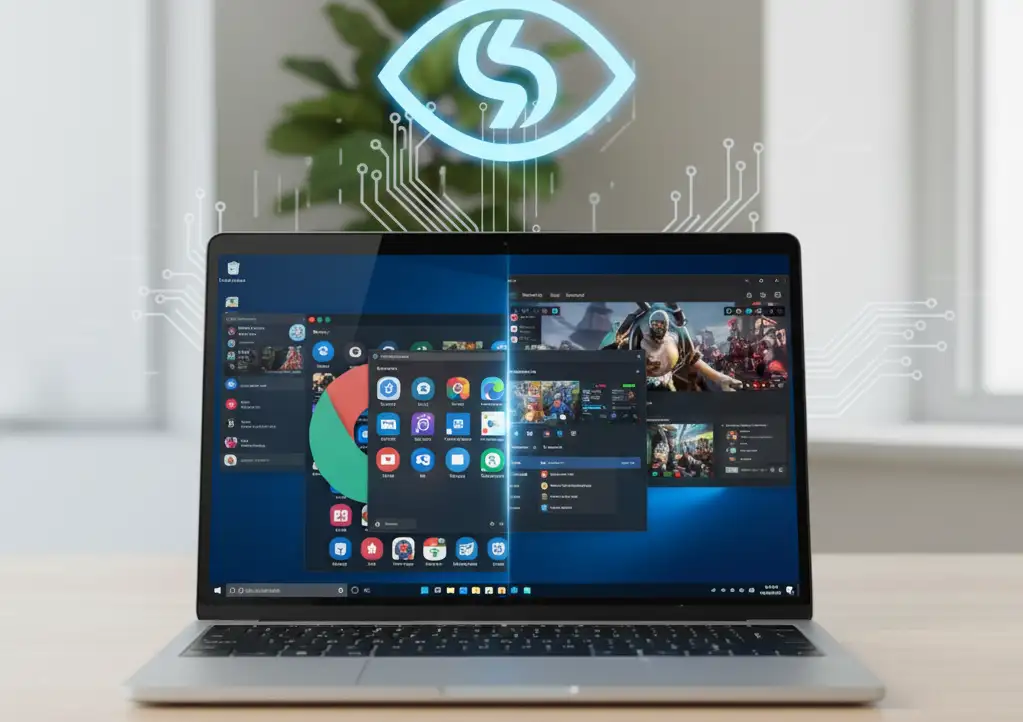
Shadow PC isn’t a traditional Windows emulator for Chromebook but a cloud-based service that gives you access to a powerful, full-fledged Windows PC in the cloud. You stream the Windows desktop to your Chromebook, turning it into a thin client for a high-performance machine.
Key Features:
- No Hardware Limitations: Your Chromebook’s specs don’t matter. You’re running on a high-end cloud server.
- Full Windows Experience: You get a complete Windows 11 desktop with access to all its features and applications.
- High-Performance: Ideal for demanding tasks like gaming, video editing, or running complex software.
- Subscription Model: It’s a monthly subscription service, not a one-time purchase.
How to Use Shadow PC:
- Create an Account: Sign up for a Shadow PC subscription on their website.
- Install the App: Download and install the Shadow PC client from the Google Play Store on your Chromebook.
- Connect and Stream: Open the app, log in, and your virtual Windows PC will boot up. You can now use your Chromebook to interact with a powerful Windows desktop.
6. Cloud Gaming Services (like Xbox Cloud Gaming or GeForce NOW)
For gamers who want to play PC-exclusive titles, cloud gaming services offer an easy way to stream games to your Chromebook. While not a true Windows emulator for Chromebook for general computing, they effectively emulate the Windows gaming experience.
Key Features:
- Low Latency Streaming: Play demanding games with minimal lag.
- No Downloads: Games are streamed from the cloud, saving local storage.
- Large Game Libraries: Access huge libraries of popular titles.
How to Use Cloud Gaming:
- Subscribe: Sign up for a service like Xbox Cloud Gaming or GeForce NOW.
- Access from Browser: Most services can be accessed directly from the Chrome browser on your Chromebook.
- Play: Connect a compatible controller and start playing your favorite PC games.
7. Google’s Android on Chrome OS
Wait, isn’t this for running Android apps? Yes, but many popular Windows applications now have official or third-party Android versions. With the built-in Android subsystem on most modern Chromebooks, you can get a functional, if not a full-featured, version of a Windows app. Think of Microsoft Office for Android, for example.
Key Features:
- Built-in: No installation or complex setup required.
- Optimized: Apps are designed to run on the Android platform.
- Simple: Just download from the Google Play Store.
How to Use Android Apps:
- Enable Google Play Store: Go to your Chromebook settings and make sure the Google Play Store is enabled.
- Search for Apps: Open the Play Store and search for the application you need.
- Install and Use: Download and install the app just as you would on a phone or tablet.
8. Remote Desktop Protocol (RDP)
If you have access to a Windows PC or server elsewhere, you can use a remote desktop client on your Chromebook to connect to it. This isn’t an emulator, but it achieves the same result: running Windows software on a Chromebook.
Key Features:
- Access Your Own PC: Use your Chromebook to control your home or office Windows PC from anywhere.
- Full Access: Get a complete, native Windows experience.
- Free: The remote desktop client itself is free.
How to Use RDP:
- Set Up Remote PC: On your Windows PC, enable Remote Desktop in the system settings.
- Install RDP Client: Download a free RDP client from the Chrome Web Store, such as Microsoft Remote Desktop.
- Connect: Enter the IP address and credentials of your Windows PC to connect and take control.
9. Crouton: The Developer’s Choice
Crouton is a script that allows you to install a full Linux distribution alongside Chrome OS. You can then install a Windows emulator or compatibility layer like Wine within that Linux environment. It’s not a beginner-friendly option and requires a Chromebook in developer mode, which wipes your data.
Key Features:
- Full Control: You have a complete Linux environment at your disposal.
- Runs Alongside Chrome OS: You can switch between Chrome OS and the Linux desktop with a simple keyboard shortcut.
- Extremely Versatile: You can use it to run almost any Linux-compatible software, including emulators.
How to Use Crouton:
- Backup Your Data: Enabling developer mode will wipe your Chromebook. Back up everything important.
- Enable Developer Mode: Follow the specific key combination for your Chromebook model to enter developer mode.
- Install Crouton: Download the Crouton script and run it from the terminal to install a Linux distribution of your choice.
- Install Emulator: Once Linux is set up, you can install a Windows emulator for Chromebook like QEMU or a compatibility layer like Wine.
10. VirtualBox on Linux Beta

VirtualBox is a popular, free, and open-source virtualization program. It’s a direct competitor to QEMU and, like QEMU, requires the Linux (Beta) environment to be enabled on your Chromebook.
Key Features:
- User-Friendly Interface: Compared to QEMU’s command-line interface, VirtualBox has a graphical user interface (GUI) that’s easier to navigate.
- Cross-Platform: Available for Windows, macOS, and Linux, with a consistent experience across all.
- Full Virtualization: Allows you to install a full Windows operating system.
How to Install VirtualBox:
- Enable Linux: Make sure Linux (Beta) is enabled.
- Install VirtualBox: Open the terminal and run
sudo apt-get install virtualbox. - Launch and Configure: Open VirtualBox from the app launcher, create a new virtual machine, and follow the setup wizard to install Windows from an ISO file.
Conclusion: Choosing the Right Windows Emulator for Chromebook
Choosing the best Windows emulator for Chromebook depends entirely on your needs. For a simple, no-fuss solution that works every time, a paid option like Parallels Desktop is the way to go. If you’re a developer or a technical user who loves to tinker and wants a free solution, QEMU or Crouton are excellent choices. For those who just need to run a few specific Windows applications without a full OS, CrossOver or Wine offer a perfect balance of performance and functionality. Finally, for high-performance needs like gaming or creative work, cloud services like Shadow PC are a game-changer.
The key takeaway is that you’re no longer stuck with just Chrome OS. With these tools, your Chromebook can become a much more versatile machine, capable of running a wide range of Windows applications and giving you the power and flexibility you need.
Frequently Asked Questions (FAQs)
A: Yes, with the right emulator or virtualization solution. Parallels Desktop and QEMU are capable of running a full Windows 11 installation, but you’ll need a powerful Chromebook with a compatible processor and sufficient RAM.
Yes, if you use a reputable and trusted solution. Free, open-source projects like QEMU and Wine are generally safe, but you should always download them from official sources. Paid services like Parallels Desktop are also very secure. The main risk comes from a less-than-reputable source.
A: Running an emulator or virtual machine will consume system resources like RAM and CPU, which can slow down your Chromebook, especially if it’s a low-end model. Cloud-based solutions like Shadow PC are a workaround for this, as they don’t use your local hardware’s power.
A: Installing an emulator or a Linux environment through the built-in “Linux (Beta)” feature generally won’t void your warranty. However, using advanced methods like Crouton, which requires putting your Chromebook in developer mode, may void your warranty. Always check your device’s specific warranty terms.
Also Read: